
Locking With Edit in App or Edit in Office
Overview
The Confluence Edit in App feature allows users to edit any attachment type with any browser. Lockpoint is fully integrated with Edit in App, and attachments are locked and unlocked while users edit them. Manually clicking the Lock to Edit and Unlock buttons is not required.
The Edit in App feature uses the Atlassian Companion desktop app to support attachment editing. If your enterprise cannot support the deployment of apps to user desktops, you may consider enabling the Confluence Edit in Office feature as an alternative, which Lockpoint also supports (but which does not require app installation).
The Edit in App feature is available from all locations in Confluence, including the Attachments macro, the Confluence Previewer, from the various Office view file macros, and the Attachments page.
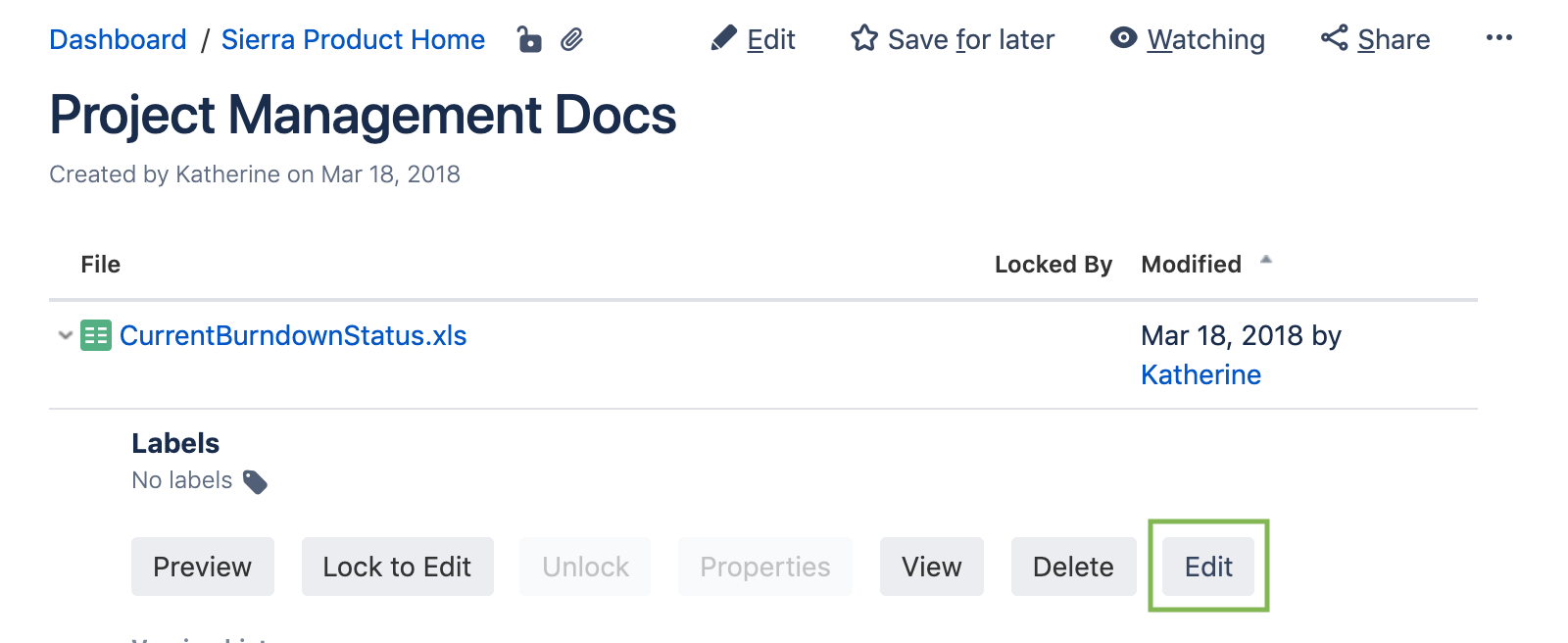
To edit an attachment from these locations, click the Edit button. Lockpoint will automatically lock the attachment when it is opened and the Locked By column in the Attachment macro will be updated.
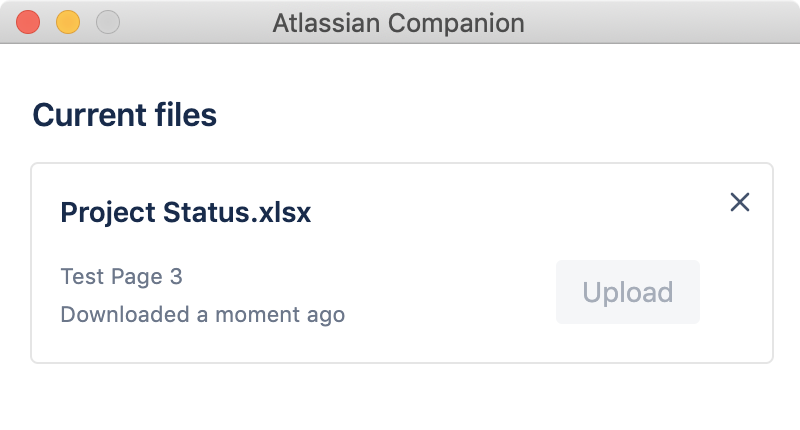
Once an attachment is open, the Atlassian Companion will launch the client application on the desktop to edit the attachment. With Confluence 7.3+, the Atlassian Companion displays a new dialog showing the attachment status:
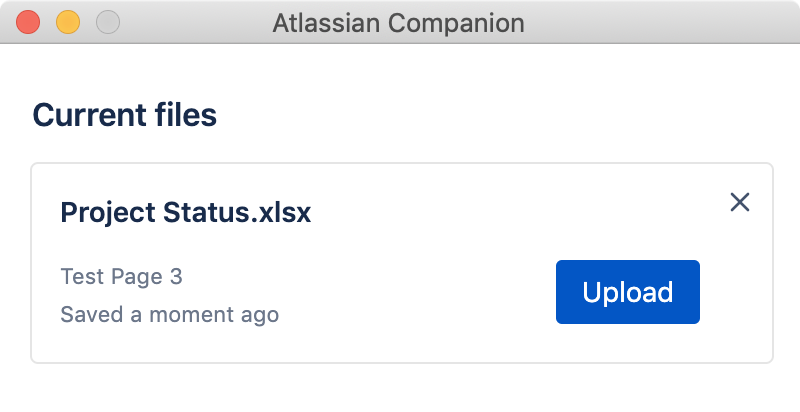
Once you have saved changes in the editing application, the Atlassian Companion app will enable the Upload button, which can be used to send the saved version to Confluence:
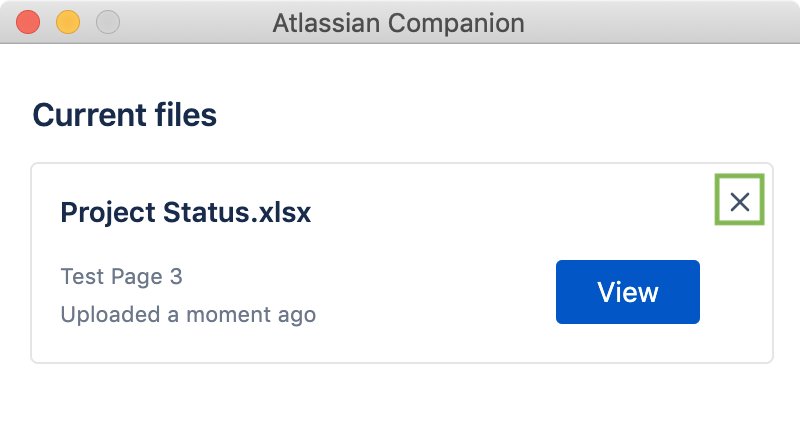
You can make further changes and continue to upload additional versions of the document within the same session. After uploading the final version, users must click the Close ("x") control, which will release the attachment from the Companion app and unlock the attachment.